Changing fonts across an entire presentation can completely transform the look and feel of your slides, making them more professional, consistent, and visually appealing. Learning How to change all fonts in PowerPoint is an essential skill for anyone who wants to quickly update design without editing each slide manually.
When you understand How to change all fonts in PowerPoint, you can save a huge amount of time by applying a uniform font style to every title, heading, and body text in just a few clicks. This ensures your presentation maintains a clean and branded appearance throughout.
Instead of going slide by slide, PowerPoint offers built-in tools like Slide Master and font themes that allow you to update everything at once. Mastering How to change all fonts in PowerPoint helps you work smarter, not harder, while keeping your slides visually consistent and impactful.
Whether you are creating a business presentation, school project, or marketing deck, knowing this simple technique can significantly improve your overall design quality and audience engagement.
How To Change All Fonts In Powerpoint At Once
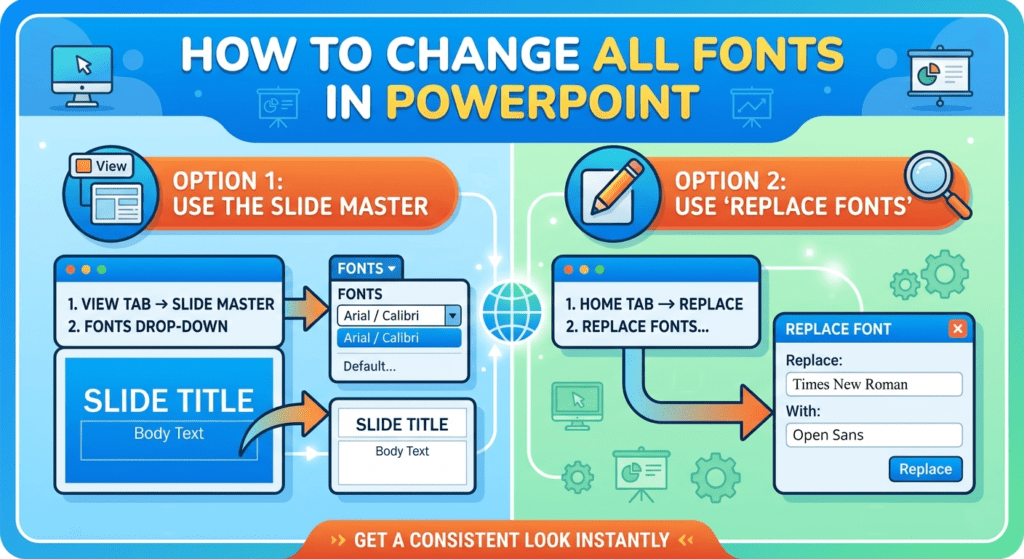
If you’re wondering How to change all fonts in PowerPoint at once, the easiest and most effective method is to use the built in Replace Fonts feature, which allows you to update every text element in your presentation without manually editing each slide one by one. This tool is designed to save time and ensure consistency across your entire deck, especially when working with large presentations that contain multiple slides, headings, and body text styles.
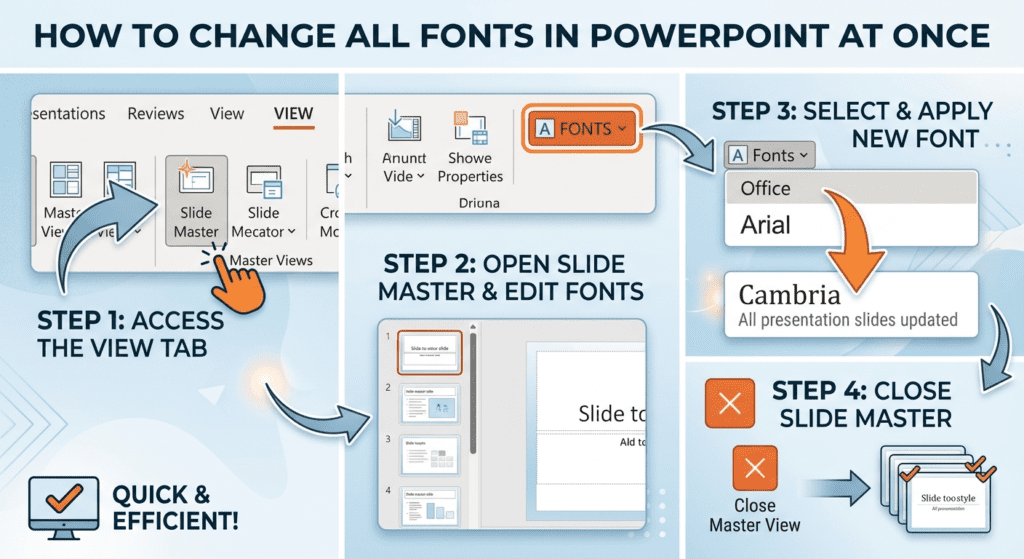
To do this, simply go to the Home tab, click on Replace, and then select Replace Fonts from the dropdown menu. From there, you can choose the font you want to replace and then select your new preferred font. Once applied, PowerPoint automatically updates the font across the entire presentation in just a few seconds. This makes it a powerful solution for anyone learning How to change all fonts in PowerPoint at once.
This method is especially useful for maintaining brand consistency, improving readability, and giving your slides a clean, professional look without extra effort. Whether you’re preparing a business report, school project, or marketing presentation, mastering How to change all fonts in PowerPoint at once ensures your design stays uniform and visually appealing throughout.
Many users rely on stylish fonts copy and paste to create visually consistent headings and titles before using PowerPoint’s Replace Fonts feature. This combination helps maintain a professional and unified design while saving time during the editing process.
By combining copy and paste fonts with PowerPoint’s built-in font replacement tools, you can ensure your entire presentation maintains a clean and cohesive appearance. This makes your slides more readable, visually balanced, and suitable for professional or academic use.
How To Change All Fonts In Powerpoint
If you want to keep your presentation consistent and professional, learning How to change all fonts in powerpoint is very important because it saves time and ensures a uniform design across every slide. Instead of editing each text box one by one, you can quickly update everything by using the Replace Fonts option or Slide Master, which applies your chosen font style to the entire presentation at once. This is the simplest method for anyone searching How to change all fonts in powerpoint to instantly improve the look and readability of their slides without manually formatting each element.
How To Change All Fonts In Powerpoint
If you are working on a browser version of PowerPoint, learning How to change all fonts in PowerPoint online is essential for quickly updating your presentation’s design without needing to install or download any software. PowerPoint Online is designed for convenience and accessibility, allowing you to make important formatting changes directly from your web browser while working from anywhere.