Guides
How to Change All Fonts in PowerPoint at Once
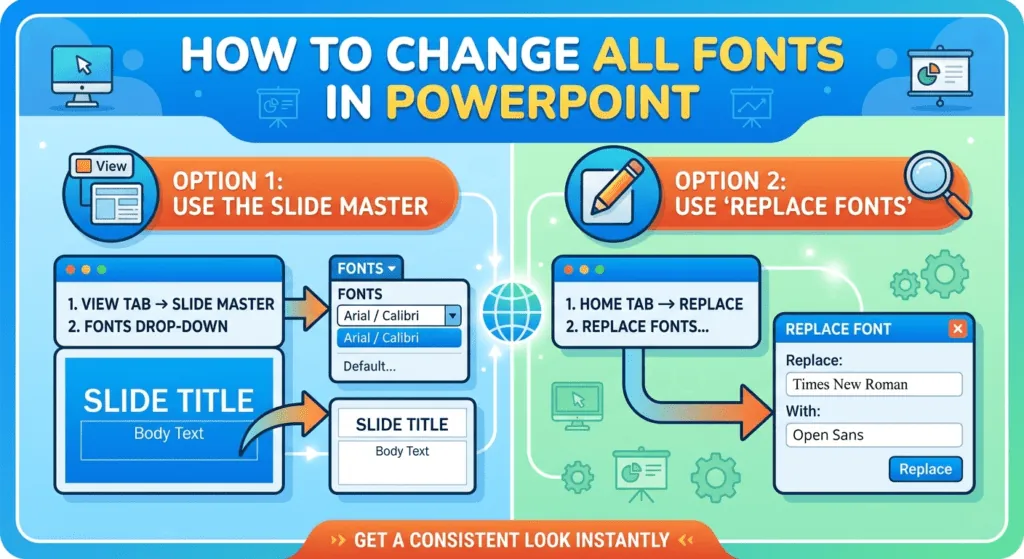
A presentation with mixed fonts looks unfinished, and fixing slides one by one takes ages. Here are three ways to change all fonts in PowerPoint at once: the Replace Fonts tool, the Slide Master, and theme fonts. Each section says which versions of PowerPoint have the feature, based on Microsoft's own documentation.
Method 1: Replace Fonts (fastest)
Replace Fonts swaps one font for another everywhere in the file, including text you formatted by hand.
- On the Home tab, in the Editing group, click the arrow next to Replace.
- Choose Replace Fonts.
- In Replace, pick the font you want to remove.
- In With, pick the new font.
- Click Replace, repeat for any other fonts, then Close.
Microsoft documents this for PowerPoint on Windows. On a Mac, recent versions have Format → Replace Fonts in the menu bar; if yours doesn't, use Method 2.
Method 2: Slide Master
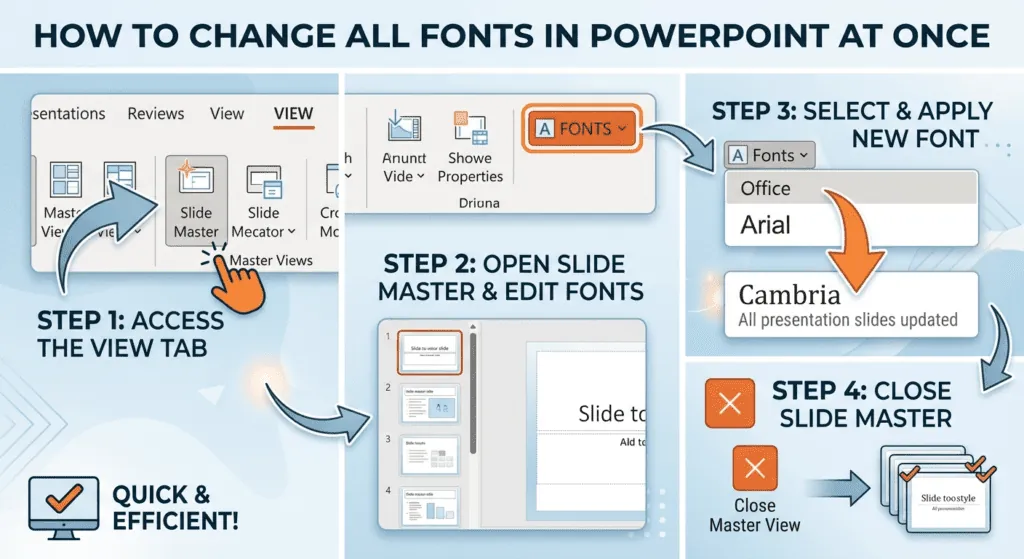
The Slide Master controls the default look of every layout, so changing it updates all slides that follow the layouts.
- Go to View → Slide Master.
- Click the top (largest) thumbnail, the master, or a specific layout.
- Select the title or body placeholder text.
- On the Slide Master tab, click Fonts and choose a font pair, or set a font from the Home tab.
- Click Close Master View.
Text you formatted manually on individual slides keeps its own font. Select those boxes and press Ctrl + Space (Windows) to reset character formatting, or use Method 1.
Method 3: theme fonts
Every theme has a heading font and a body font. On the Design tab, open the Variants menu, choose Fonts, and pick a pair or Customize Fonts to create your own. All text that uses the theme fonts updates instantly, which makes this the cleanest choice for new presentations.
Which method should you use?
| Situation | Best method |
|---|---|
| Fixing a finished deck with mixed fonts | Replace Fonts |
| Building a template for a team | Theme fonts + Slide Master |
| Using PowerPoint for the web | Open in the desktop app, or edit slide by slide |
Change the font size on all slides
Replace Fonts changes the typeface, not the size. To resize text everywhere, open View → Slide Master, select the title or body placeholders on the master slide, and set a new size on the Home tab. Layouts inherit the change. For text boxes added by hand, select them all on a slide (Ctrl + A) and use Increase/Decrease Font Size (Ctrl + Shift + > or <).
Embed fonts so they don't change on another computer
If you present from a different computer that doesn't have your font, PowerPoint swaps it for another one and your layout can shift. On Windows, go to File → Options → Save and tick Embed fonts in the file. "Embed only the characters used" keeps the file small; "Embed all characters" lets others edit the text. Some fonts' licences don't allow embedding, in which case PowerPoint will tell you.
How to choose fonts to replace
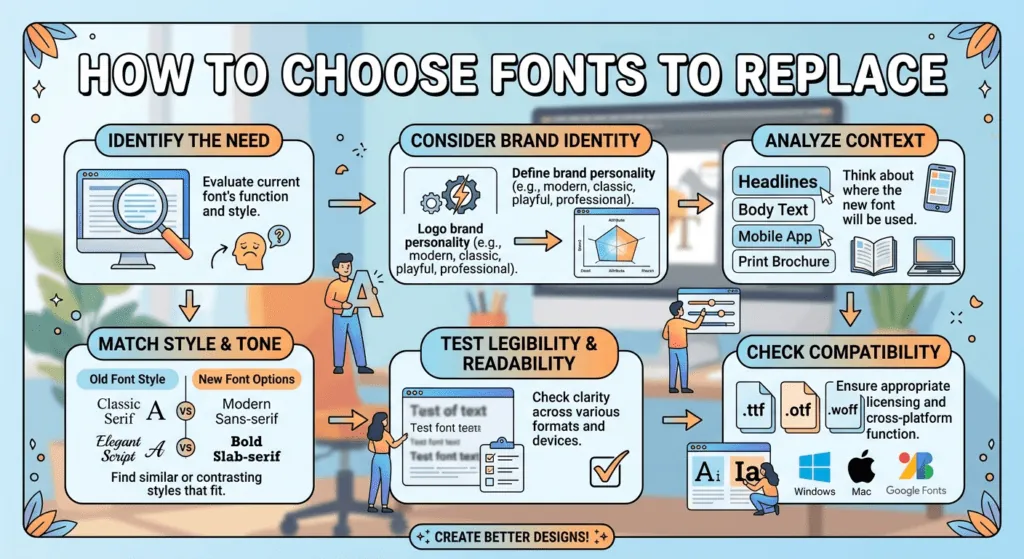
- Stick to two fonts: one for headings, one for body text.
- Choose fonts every computer has (such as Aptos, Calibri, Arial or Georgia) if you'll present on someone else's machine.
- Check readability from the back of the room: body text below about 18pt is hard to read on a projector.
- Decorative titles for social posts about your talk? Make styled text with our font generator; inside PowerPoint, use real fonts instead.
Frequently asked questions
Why didn't Replace Fonts change some text?
Text inside images, SmartArt converted to pictures, or embedded objects isn't real slide text, so Replace Fonts can't reach it. Edit those items separately.
Can I change all fonts in PowerPoint for the web?
PowerPoint for the web doesn't have Replace Fonts. Use "Open in Desktop App" for a full replacement, or change fonts slide by slide.
How do I stop fonts changing on another computer?
If the other computer doesn't have your font, PowerPoint substitutes one. Use common fonts, or embed fonts via File → Options → Save → "Embed fonts in the file" on Windows.