Guides
How to Change Font Color on PDF (Acrobat, Reader, Edge and Preview)
Need to highlight a total, match brand colours or make a filled form easier to read? How you change font color on PDF files depends on one thing: whether the text is already in the PDF or is text you are adding. Existing text needs a real PDF editor; added text can be coloured with free tools. Here are the steps for each.
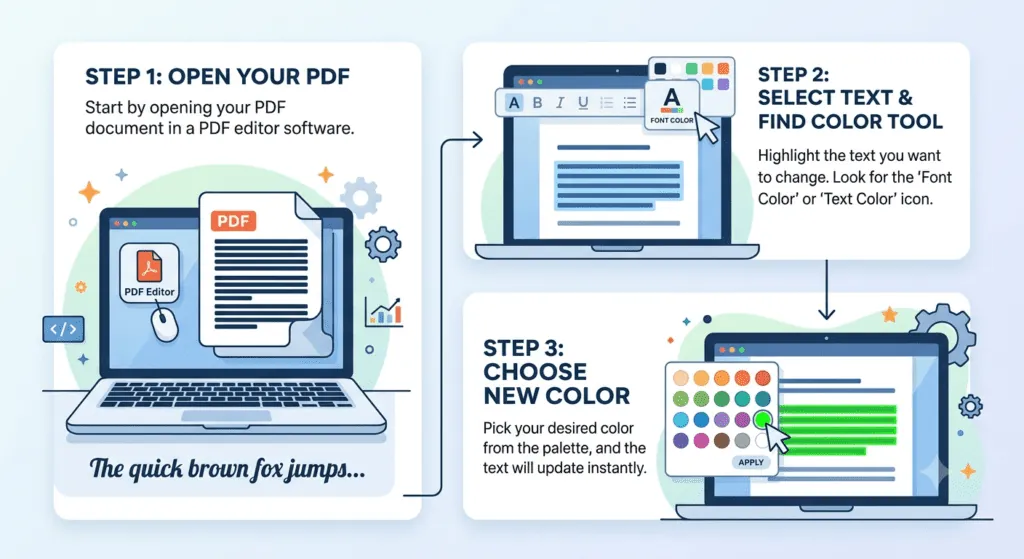
Change the color of existing text (Adobe Acrobat Pro)
- Open the PDF in Acrobat Pro.
- Choose Edit (or Tools → Edit PDF in older versions). Text boxes appear around the existing text.
- Select the words you want to recolour.
- In the formatting panel, click the text color swatch and pick a colour.
- Save the file (use Save As to keep the original).
Change PDF text color with Fill & Sign (Acrobat Reader)
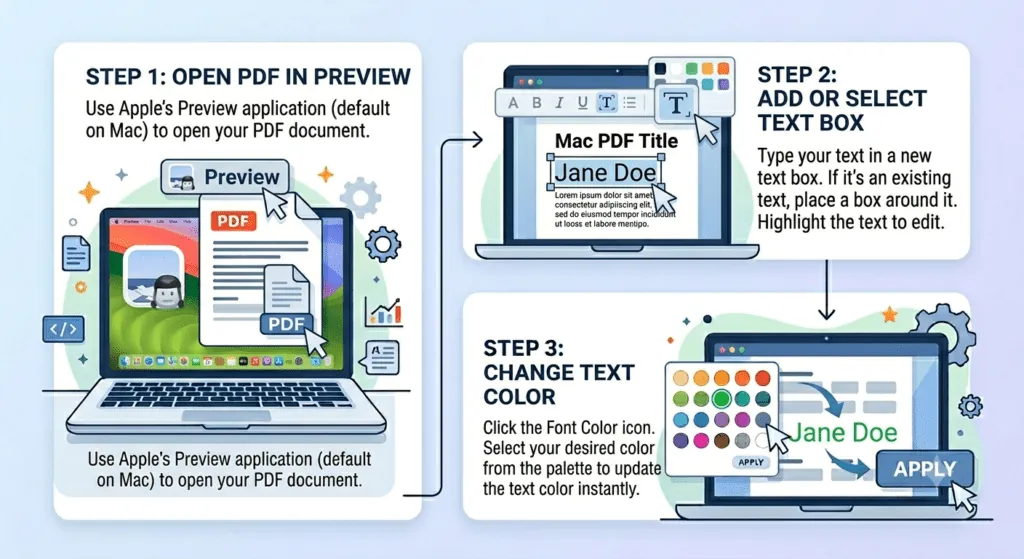
Fill & Sign adds new text on top of the PDF, for example to fill a form that has no fields.
- Open the PDF in Acrobat Reader and choose Fill & Sign.
- Click where you want to type and add your text.
- In the small toolbar above the text, click the colour circle and pick a colour. (Older Reader versions don't show it; update Reader if you can't find it.)
Fill & Sign can't change text that was already in the document.
Free option on Windows: Microsoft Edge
- Right-click the PDF → Open with → Microsoft Edge.
- Click Add text in the PDF toolbar and click on the page.
- Type your text and use the text options to pick a colour and size.
- Click Save or Save as.
Free option on Mac: Preview
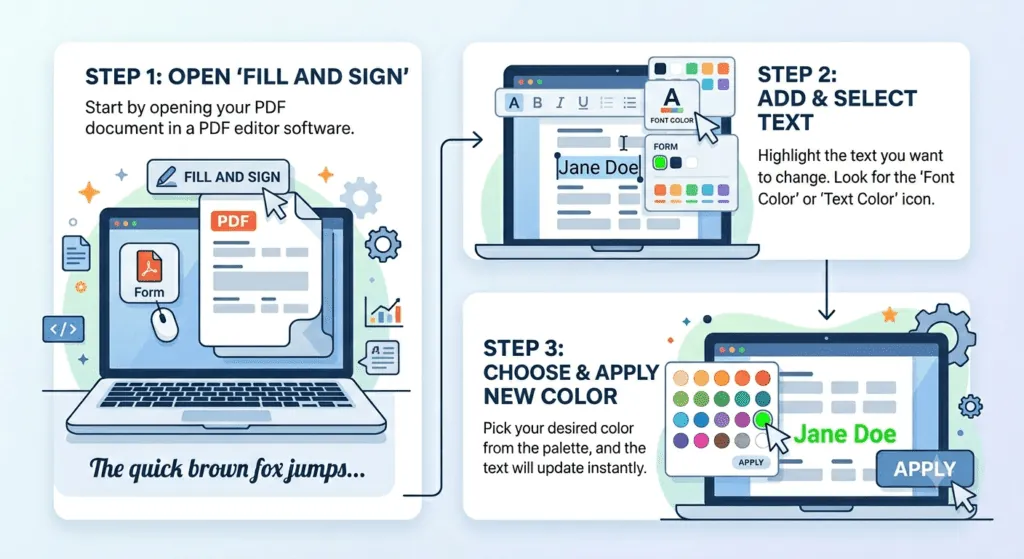
- Open the PDF in Preview and show the Markup toolbar (the pen icon).
- Click the Text tool (T) to add a text box, and type.
- Click the Text Style button (Aa) and pick a colour, font and size.
- Save the file.
Like Edge, Preview colours text you add; it can't edit the PDF's original text.
Change the text color of PDF form fields
Fillable forms have their own text settings. In Acrobat Pro, open Prepare a Form, right-click a field and choose Properties. On the Appearance tab, set the Text Color (and font size), then close the dialog. Every value typed into that field will now use the new colour. Select several fields first to change them together.
Which method should you use?
| What you want | Tool | Cost |
|---|---|---|
| Recolour text already in the PDF | Acrobat Pro (Edit) or another full PDF editor | Paid |
| Add coloured text on top | Acrobat Reader Fill & Sign, Edge, Preview | Free |
| Change colour of form entries | Acrobat Pro (Prepare a Form) | Paid |
Tips for readable coloured text
- Keep contrast high: dark text on a light page. Light grey or yellow text is hard to read and to print.
- Use colour for meaning, not decoration: one accent colour for totals, warnings or headings.
- Check scanned PDFs: if you can't select the text, it's an image. Run OCR in your editor first.
- Need stylish text for social media instead? Our font generator makes copy-and-paste styles for bios and posts.
Frequently asked questions
Can I change the color of existing text in a PDF for free?
Free tools usually only colour text you add (a new text box). Changing text that is already in the PDF needs a PDF editor such as Acrobat Pro or another full editor.
Why can't I select the text in my PDF?
The PDF may be a scanned image. Text in an image can't be recoloured as text; run OCR (text recognition) in an editor first, or cover it with a new text box.
Will changing the color affect other text?
In Acrobat, the colour applies only to the text you selected. Select a whole text box to change all of it.