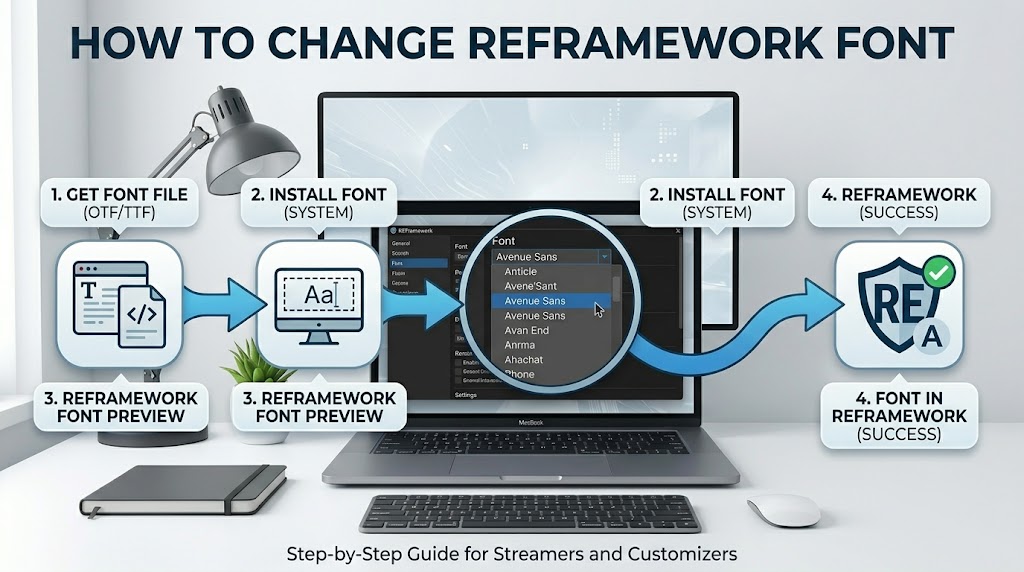
You can change the font in REFramework to make your project more readable and organized. A clear font enhances the look of your interface. To update the font, use the available settings or the correct configuration for your project.
Follow the right steps, and the process will be simple.
What Is REFramework First
REFramework is a tool made by a developer called praydog. It works with games built on Capcom’s RE Engine. Think of it as the backbone that other mods sit on top of. Without it, most mods for these games wouldn’t run at all.
The text, buttons, and sliders in the menu all use a font called ImGui. That’s the default. You can change it or resize it.
Method 1: Use the In-Game Slider
Easiest one by far.
Step 1: Load up your game and hit Insert. The menu pops up.
Step 2: Click on Configuration at the top of the menu.
Step 3: Find the Font Size slider. It’s in there.
Step 4: Drag the slider left to make text smaller, right to make it bigger.
Step 5: Close the menu. The change takes effect straight away.
Heads up. Changing the font size while the game runs can crash it. If that happens, close the game and use Method 2 instead.
Method 2: Edit the Config File
Takes a bit more work but it won’t crash on you.
Step 1: Close the game.
Step 2: Open your game folder. On Steam, right-click the game and hit Browse Local Files.
Step 3: Look for re2_fw_config.txt in the main folder.
Step 4: Right-click it and open with Notepad.
Step 5: Search for font_size. Change the number next to it. It’s set to 17 by default. Type 20 if you want bigger text.
Step 6: Save and launch the game.
The menu text updates to whatever size you picked.
Method 3: Add a Custom Font File
REFramework lets you load your own font. Any font you like in the mod menu.
Step 1: Grab a font file. It needs to end in .ttf or .otf. Google Fonts is free and has loads of them.
Step 2: Open your game folder. Go into the reframework folder, then the fonts folder. No fonts folder? Make one.
Step 3: Drop your font file in there.
Step 4: Boot up the game and hit Insert.
Step 5: Open Configuration. Your font file should show up in the font list. Click it.
Step 6: Restart the game. Done. Your font is in there now.
Method 4: Use a Font Mod from Nexus Mods
Some people have already done the hard work and uploaded font mods. This is the fastest option if you don’t want to dig through settings.
Go to Nexus Mods. Search your game name plus “REFramework font.” You’ll find mods for Japanese fonts, cleaner text, and bigger sizes.
Download the mod. Inside the zip file you’ll usually find a reframework folder. Copy that folder into your game’s install directory. Launch the game and the font change loads.
When the Font Looks Broken
Sometimes after a game update, REFramework updates too and fonts can look weird or too big. A few things to try:
Update REFramework to the latest version. Old versions sometimes have font bugs after game patches. If text looks massive and won’t change with the slider, close the game and delete the config file. REFramework makes a new one when you launch. That resets everything back to default.
If you added a custom font and the game crashes on launch, remove the font file from the fonts folder and try again. Some font files don’t load.
Conclusion
Use the slider in Configuration to change the font size quickly. Editing the config file while the game is closed provides a more stable change. You can also add a custom .ttf file. Choose the method that fits your needs. Most users use the slider, and it takes about ten seconds.